
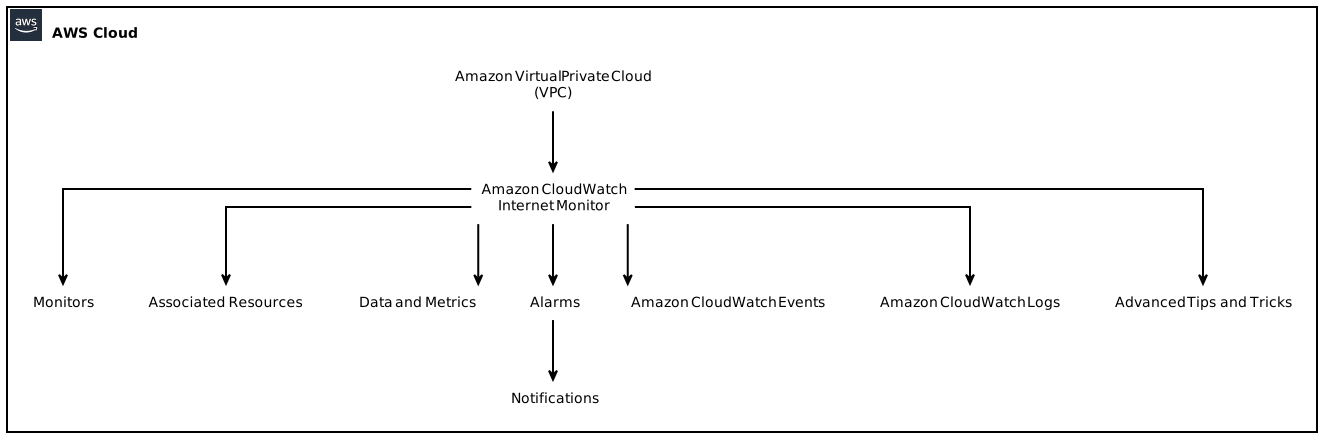
In this guide, we will walk you through the process of launching Amazon CloudWatch Internet Monitor directly from the Amazon Virtual Private Cloud (VPC) console. This powerful tool provides valuable insights into how internet issues can affect the performance and availability of your applications hosted on AWS. By creating monitors and associating them with various resources such as VPCs, Network Load Balancers, Amazon CloudFront distributions, or Amazon WorkSpaces directories, you can effectively monitor and optimize your network infrastructure.
Table of Contents
- Introduction
- Benefits of Using Amazon CloudWatch Internet Monitor
- Prerequisites
- Accessing Amazon Virtual Private Cloud Console
- Launching Amazon CloudWatch Internet Monitor
- Creating a Monitor
- Associating Resources with the Monitor
- Analyzing Data and Metrics
- Managing Alarms
- Setting up Notifications
- Automating Processes with Amazon CloudWatch Events
- Leveraging Amazon CloudWatch Logs
- Advanced Tips and Tricks
- Conclusion
1. Introduction
Amazon CloudWatch Internet Monitor is a powerful tool that provides visibility into performance and availability issues caused by internet-related problems. By launching it directly from Amazon Virtual Private Cloud (VPC) console, you can seamlessly integrate this tool into your existing infrastructure and gain valuable insights into the health of your applications hosted on AWS.
This guide will help you understand the process of launching Amazon CloudWatch Internet Monitor and provide you with additional technical and relevant points to optimize your monitoring setup and increase your application’s performance.
2. Benefits of Using Amazon CloudWatch Internet Monitor
Amazon CloudWatch Internet Monitor offers several benefits for monitoring your applications and network infrastructure:
- Granular Visibility: Gain insight into how internet-related issues impact the performance and availability of your applications.
- Enhanced Troubleshooting: Identify and address network issues proactively, reducing downtime and ensuring higher reliability.
- Real-Time Monitoring: Continuously monitor your resources and receive alerts when metrics breach predefined thresholds.
- Seamless Integration: Launch Internet Monitor directly from the VPC console, reducing the complexity of the setup process.
- Scalability and Flexibility: Monitor a wide range of AWS resources, including VPCs, Network Load Balancers, Amazon CloudFront distributions, and Amazon WorkSpaces directories.
By leveraging Amazon CloudWatch Internet Monitor, you can enhance the performance and availability of your applications and ensure a seamless experience for your users.
3. Prerequisites
Before you begin launching Amazon CloudWatch Internet Monitor, make sure you have the following prerequisites in place:
- An active AWS account with appropriate permissions to access VPC and CloudWatch services.
- Basic knowledge of VPC concepts and networking principles.
- Familiarity with AWS management console and navigation.
4. Accessing Amazon Virtual Private Cloud Console
To access the Amazon Virtual Private Cloud (VPC) console and launch the Internet Monitor, follow these steps:
- Login to your AWS Management Console using your credentials.
- Navigate to the VPC service by searching for “VPC” in the AWS Management Console search bar.
- Click on the “Virtual Private Cloud” service to open the VPC console.
Congratulations! You have successfully accessed the Amazon Virtual Private Cloud console and are ready to launch the Internet Monitor.
5. Launching Amazon CloudWatch Internet Monitor
With the VPC console open, you can now proceed to launch Amazon CloudWatch Internet Monitor.
Follow these steps to launch the Internet Monitor:
- In the VPC console, click on the “Internet Monitor” tab or navigate to the “Monitoring” section of the left-hand sidebar.
- Click on the “Launch Internet Monitor” button to initiate the setup process.
6. Creating a Monitor
Once you have launched Amazon CloudWatch Internet Monitor, it’s time to create a monitor to track the performance and availability of your resources. Follow these steps to create a monitor:
- In the Internet Monitor console, click on the “Create Monitor” button.
- Provide a meaningful name and description for your monitor.
- Select the desired monitoring frequency and duration.
- Choose the monitoring zone that best reflects the geographical location you want to test from.
7. Associating Resources with the Monitor
To effectively monitor your resources, you need to associate them with the monitor you have created. Here’s how you can associate resources with the monitor:
- In the Internet Monitor console, locate the monitor you created and click on the “Associate Resources” button.
- Select the desired resources to associate with the monitor.
- Review the selected resources and click on the “Associate” button to complete the process.
8. Analyzing Data and Metrics
Amazon CloudWatch Internet Monitor provides a plethora of data and metrics to analyze the performance and availability of your resources. By understanding and interpreting these metrics, you can identify potential bottlenecks and optimize your network infrastructure accordingly.
To access and analyze data and metrics, follow these steps:
- In the Internet Monitor console, navigate to the “Data and Metrics” section.
- Select the desired time range to analyze the data.
- Use the available filters to narrow down the metrics based on your requirements.
9. Managing Alarms
Alarms are an essential component of any monitoring setup as they notify you when certain metrics breach predefined thresholds. By effectively managing alarms, you can proactively address issues and minimize downtime.
To manage alarms in Amazon CloudWatch Internet Monitor, follow these steps:
- In the Internet Monitor console, go to the “Alarms” section.
- Click on the “Create Alarm” button to initiate the alarm setup process.
- Configure the alarm threshold, actions, and notification preferences as per your requirements.
- Save the alarm configuration to enable real-time monitoring and alerts.
10. Setting up Notifications
In addition to alarms, Amazon CloudWatch Internet Monitor allows you to set up notifications to receive alerts via various channels such as email, SMS, or AWS Simple Notification Service (SNS). By configuring notifications, you can ensure that you stay informed about critical events impacting your application’s performance.
To set up notifications, follow these steps:
- In the Internet Monitor console, navigate to the “Notifications” section.
- Click on the “Create Notification” button to configure a new notification.
- Select the desired notification channel(s) and provide the necessary details.
- Save the notification settings to enable timely alerts.
11. Automating Processes with Amazon CloudWatch Events
Amazon CloudWatch Events allow you to automate various processes based on events and patterns detected by CloudWatch. By leveraging this feature, you can enhance your monitoring setup and minimize manual intervention.
To automate processes using Amazon CloudWatch Events, follow these steps:
- In the Internet Monitor console, go to the “Event Rules” section.
- Click on the “Create Rule” button to initiate the rule setup process.
- Define the event pattern and the corresponding actions to be triggered.
- Save the rule configuration to enable automated processes based on events.
12. Leveraging Amazon CloudWatch Logs
Amazon CloudWatch Logs enable you to store, monitor, analyze, and retrieve log files from various resources within your AWS environment. By integrating CloudWatch Logs with Amazon CloudWatch Internet Monitor, you can gain deeper insights into system behavior and identify potential issues.
To leverage Amazon CloudWatch Logs, follow these steps:
- In the Internet Monitor console, navigate to the “Logs” section.
- Click on the “Create Log Group” button to set up a new log group.
- Provide a unique name for the log group and configure the necessary settings.
- Save the log group configuration to start capturing and analyzing logs.
13. Advanced Tips and Tricks
In addition to the basic setup process, there are several advanced tips and tricks that can further enhance the functionality and effectiveness of Amazon CloudWatch Internet Monitor. Consider implementing the following techniques:
- Utilize custom metrics to monitor specific aspects of your application and infrastructure.
- Leverage CloudWatch Dashboards to consolidate and visualize relevant metrics in a single interface.
- Implement cross-account monitoring to monitor resources across multiple AWS accounts.
- Integrate Amazon CloudWatch Logs with other AWS services such as AWS Lambda for advanced analysis and alerting capabilities.
- Explore CloudWatch Contributor Insights to identify the top contributors impacting your application’s performance.
14. Conclusion
By launching Amazon CloudWatch Internet Monitor directly from the Amazon Virtual Private Cloud console, you can gain valuable insights into the performance and availability of your applications hosted on AWS. This guide has provided you with step-by-step instructions to set up and optimize your monitoring environment. Additionally, we have discussed various advanced techniques to enhance your monitoring capabilities and improve your application’s performance.
Remember to regularly review and refine your monitoring setup based on your changing requirements and evolving application needs. By leveraging the powerful features and functionalities of Amazon CloudWatch Internet Monitor, you can proactively address network issues and ensure a seamless experience for your users.