

Introduction
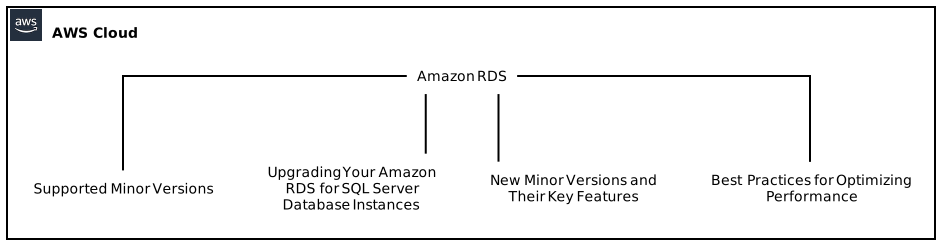
Amazon RDS (Relational Database Service) is a managed database service provided by Amazon Web Services (AWS) that makes it easy to set up, operate, and scale a relational database in the cloud. In this guide, we will focus on Amazon RDS for SQL Server, specifically highlighting the supported minor versions and encouraging users to upgrade their database instances for optimal performance. We will also provide step-by-step instructions on how to upgrade your database instances using the Amazon RDS Management Console and AWS CLI. Additionally, we will discuss the new minor versions and their key features.
Table of Contents
- Introduction
- Supported Minor Versions
- Upgrading Your Amazon RDS for SQL Server Database Instances
- 3.1 Upgrading Through the Amazon RDS Management Console
- 3.2 Upgrading Using the AWS CLI
- New Minor Versions and Their Key Features
- 4.1 SQL Server 2014 SP3 CU4 GDR – 12.0.6449.1
- 4.2 SQL Server 2016 SP3 GDR – 13.0.6435.1
- 4.3 SQL Server 2017 CU31 GDR – 14.0.3465.1
- 4.4 SQL Server 2019 CU23 – 15.0.4335.1
- Best Practices for Optimizing Performance in Amazon RDS for SQL Server
- 5.1 Configuring the Right Instance Type
- 5.2 Utilizing Provisioned IOPS and Enhanced Monitoring
- 5.3 Implementing Read Replicas for Improved Scalability
- 5.4 Enabling Automatic Backups and Database Snapshots
- 5.5 Implementing Multi-AZ Deployments for High Availability
- Conclusion
Supported Minor Versions
Amazon RDS for SQL Server supports the following minor versions:
- SQL Server 2014 GDR (General Distribution Release)
- SQL Server 2016 GDR
- SQL Server 2017 CU31 GDR (Cumulative Update)
- SQL Server 2019 CU23
Upgrading to these supported minor versions is essential as it ensures that your database instances are equipped with the latest features, security updates, and performance enhancements.
Upgrading Your Amazon RDS for SQL Server Database Instances
Upgrading your Amazon RDS for SQL Server database instances is a straightforward process that can be done with just a few clicks in the Amazon RDS Management Console or by utilizing the AWS CLI.
3.1 Upgrading Through the Amazon RDS Management Console
To upgrade your Amazon RDS for SQL Server database instances through the console, follow these steps:
- Log in to the AWS Management Console and navigate to the Amazon RDS service.
- Select the region where your database instances are located.
- Click on “Databases” in the left-hand navigation pane.
- Select the database instance you wish to upgrade.
- Click on the “Modify” button.
- In the “Modify DB Instance” page, scroll down to the “Engine version” section.
- Select the desired minor version from the dropdown menu.
- Click on the “Continue” button.
- Review the summary of the modifications and click on the “Modify DB Instance” button to initiate the upgrade process.
3.2 Upgrading Using the AWS CLI
To upgrade your Amazon RDS for SQL Server database instances using the AWS CLI, follow these steps:
- Install the AWS CLI on your local machine if you haven’t already done so.
- Open a terminal or command prompt and run the following command to upgrade your database instance:
aws rds modify-db-instance --db-instance-identifier <instance-id> --engine-version <desired-version>
Replace <instance-id> with the identifier of your database instance and <desired-version> with the desired minor version.
- Monitor the command output for any errors or status updates.
New Minor Versions and Their Key Features
Let’s take a closer look at the new minor versions supported by Amazon RDS for SQL Server and their key features:
4.1 SQL Server 2014 SP3 CU4 GDR – 12.0.6449.1
- This minor version includes the latest Service Pack 3 Cumulative Update 4 General Distribution Release.
- It provides several security fixes, bug fixes, and stability improvements.
- Upgrading to this version ensures your database is up to date with the latest patches and enhancements.
4.2 SQL Server 2016 SP3 GDR – 13.0.6435.1
- This minor version includes Service Pack 3 General Distribution Release for SQL Server 2016.
- It addresses various stability issues and includes critical bug fixes.
- Upgrading to this version ensures improved stability and performance for your SQL Server 2016 database.
4.3 SQL Server 2017 CU31 GDR – 14.0.3465.1
- This minor version includes Cumulative Update 31 General Distribution Release for SQL Server 2017.
- It introduces important bug fixes, security updates, and performance optimizations.
- Upgrading to this version ensures the latest features and improvements are available for your SQL Server 2017 database.
4.4 SQL Server 2019 CU23 – 15.0.4335.1
- This minor version includes Cumulative Update 23 for SQL Server 2019.
- It provides the latest bug fixes, security updates, and performance enhancements.
- Upgrading to this version ensures that your SQL Server 2019 database benefits from the most recent updates and optimizations.
Best Practices for Optimizing Performance in Amazon RDS for SQL Server
Beyond upgrading to supported minor versions, there are several best practices that can help optimize performance in Amazon RDS for SQL Server. Let’s explore some of them:
5.1 Configuring the Right Instance Type
Choosing the correct instance type is crucial for achieving optimal performance. Consider factors such as your database size, workload, and expected user concurrency when selecting an instance type. AWS provides a variety of instance types tailored for different use cases, such as compute-intensive or memory-intensive workloads.
5.2 Utilizing Provisioned IOPS and Enhanced Monitoring
Provisioned IOPS (Input/Output Operations Per Second) allows you to allocate a specific number of IOPS to your RDS instance, ensuring consistent and predictable performance. Enhanced Monitoring provides deeper insights into your RDS instances by collecting and displaying real-time metrics.
5.3 Implementing Read Replicas for Improved Scalability
Read Replicas allow you to create up to five copies of your database to offload read traffic from the primary instance. This enables horizontally scaling your database architecture and leveraging the replicas for improved query performance.
5.4 Enabling Automatic Backups and Database Snapshots
Enabling automated backups ensures that your database is regularly backed up, providing point-in-time recovery options. Additionally, taking manual snapshots allows you to create a consistent snapshot of your database at any given time, providing a restore point for disaster recovery.
5.5 Implementing Multi-AZ Deployments for High Availability
Multi-AZ (Availability Zone) deployments replicate your database to a standby instance located in a different availability zone. In the event of a primary instance failure, Amazon RDS automatically fails over to the standby instance, minimizing downtime and ensuring high availability.
Conclusion
In this guide, we have explored Amazon RDS for SQL Server and highlighted the importance of upgrading your database instances to supported minor versions. We have provided step-by-step instructions on how to upgrade using the Amazon RDS Management Console and AWS CLI. Additionally, we discussed the new minor versions and their key features. Finally, we shared some best practices for optimizing performance in Amazon RDS for SQL Server. By following these guidelines, you can ensure your SQL Server databases on Amazon RDS are equipped with the latest updates and enhancements, providing you with a reliable and high-performing database solution.